


Security brings together provider-backed alarms, locks, covers, openings, and cameras. Risky actions require deliberate confirmation.
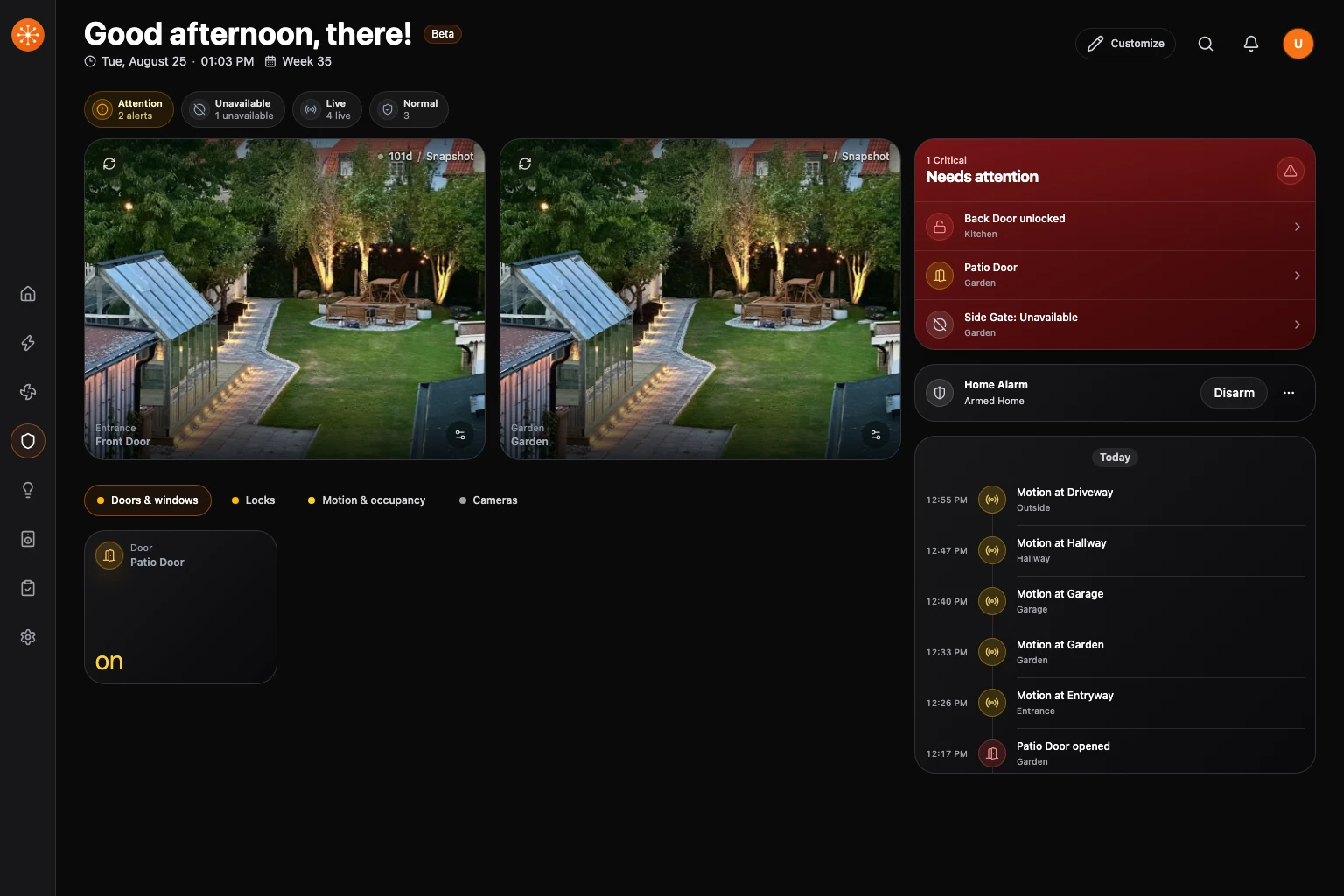
Review quickview
The summary strip prioritizes attention and unavailable devices, then shows camera availability and state summaries for the available device groups. Select a summary to inspect matching devices. The command center keeps the selected camera feeds prominent while Needs attention, alarm controls, and Recent activity stay together beside them on larger screens and stack into the same reading order on phones.
- Select an attention row to jump to that entity’s card. A motion or occupancy sensor linked to a camera opens that camera instead.
- Select a camera activity row to open the matching camera.
- Choose Load older activity when provider history is available and you need earlier events. The feed shows failed refreshes and its last successful update; choose Retry to try again.
- Use the group buttons below quickview to inspect doors and windows, locks, motion and occupancy, cameras, and other available security groups.
Arrange quickview
- Choose Customize while Security is open.
- Select a device card’s pin button, or drag the card into Quickview at the top.
- Drag quickview cards to change their order. Use the remove action in the card’s bottom dock, or drag it back to the device list, to remove it from quickview.
- Choose Done to leave edit mode. Changes are saved as you arrange the cards.
Pinning keeps the card in the device list. To restore a hidden device first, use Add entity.
Control a lock or cover
Open the card, confirm the target, then use the supported action. Slide or swipe confirmation can be required for lock state changes.
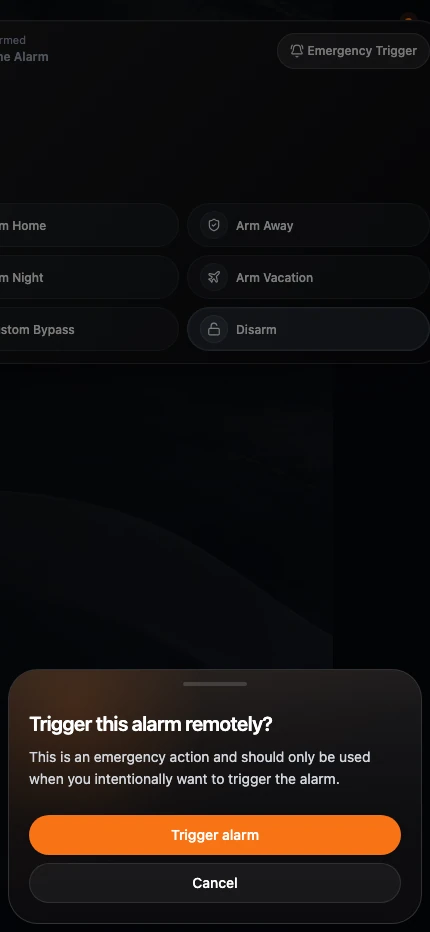
Arm or disarm an alarm
- Select the alarm panel.
- Choose the supported arm or disarm mode.
- Enter a code when required.
- Confirm the action.
The emergency trigger requires a separate confirmation.
View cameras
Select a quickview camera to open its live viewer. Live indicates verified playback. Snapshot load age describes when Navet received the image, rather than when the camera captured it. Kiosk mode can hide configuration controls while leaving the camera surface visible.
When a camera exposes linked lights, desktop uses a compact popover and phones use a bottom sheet for power and brightness so the controls remain touch-friendly.
If video does not play, use Camera does not play live video.
Safety note
Navet sends commands through the owning provider. Verify physical state when safety matters, especially after a network or provider error.